¶ Console Modkit Basics
The Console and PC Modkit are similar in many ways, but this page will cover all the differences that you need to know in order to work with the Console Modkit. Starting with the absolute basics, the PC and Console modkits are two separate versions of Unreal 4. This engine can be resource hungry, it requires a PC with decent hardware and ~81GB of free space, however 100GB and an SSD is recommended for best performance.
If you haven't downloaded it already, here is where you can get the console modkit (no link yet)
One big difference is the process of uploading and installing mods to a server. Console mods use Mod.io, so you will need to create an account there before you can upload a mod.
¶ Uploading Your Mod
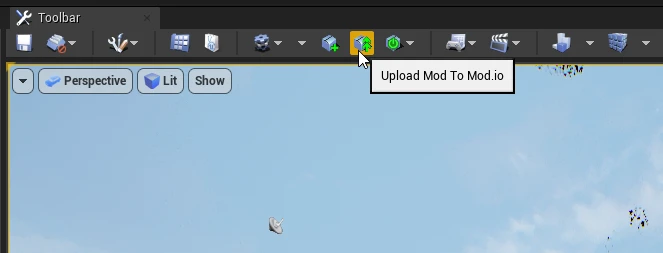
Once you have finished your mod and you are ready to upload, hit the UploadModToModIO button. This will open the configuration window.
Select Mod and Enter Details:
You will need to select your new mod and fill in the required fields.
Important Note: Moderation on Mod.io is done manually by a human person, not automatically. This means two things; first is that it will take time for your mod to be approved, likely a day or more. Second is to be as descriptive as possible with your changelogs and descriptions.
Mod Name: The title of your mod.
Description: A detailed explanation of what your mod does.
Change Notes (Optional): If updating a mod, describe what has changed in this build.
Mod Logo: Select an image file (PNG or JPEG).
Requirement: Max size 1MB, resolution approximately 512px.
Authentication:
Before you can select platforms or upload, you must authenticate to link the mod to your account. Enter your email address in the designated field, and click to request a verification code.
Enter the 5-digit code sent to your email.
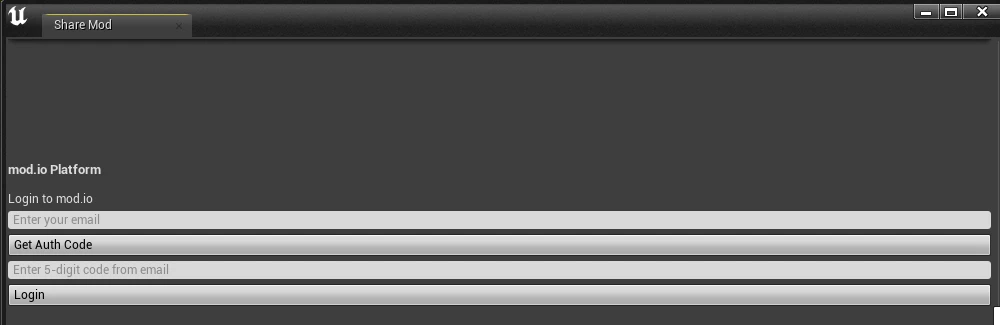
Note: The "Target Platforms" and "Upload" buttons will remain hidden until authentication is successful.
Select Mod Type (New vs. Update):
Use the dropdown menu to define the scope of the upload:
Create New Mod: Select this (default) to generate a fresh Mod ID.
Update Existing Mod: Select one of your previously created mods from the list. The system will automatically grab the existing ID and update the manifest accordingly.

Select Platforms and Upload:
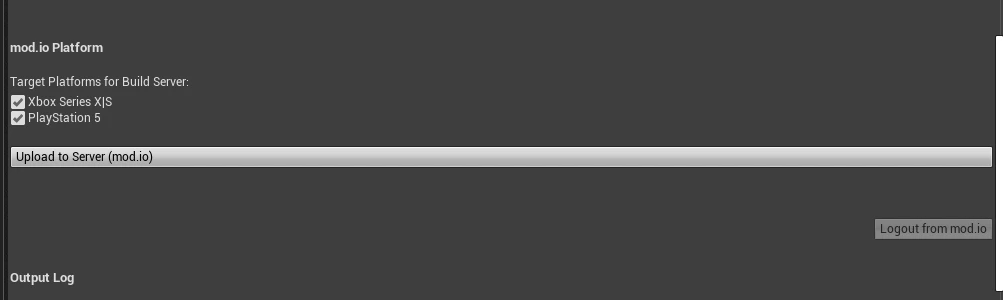
Once authenticated, select the target platforms for the build and click the upload button.
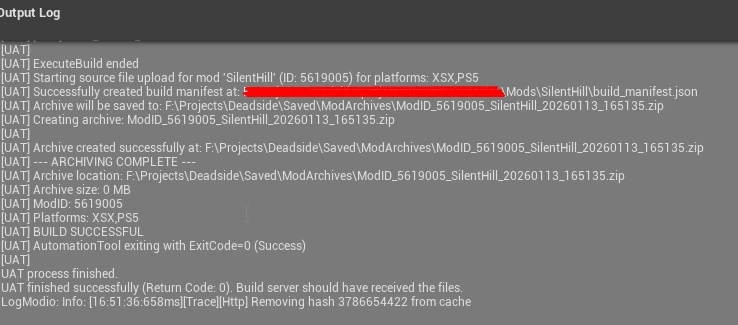
Log Window: A log window at the bottom of the screen will display the real-time status of the operation.
Completion & Build Process:
Upon a successful request the tool generates an archive containing the mod’s source files and an automatically generated Manifest. This includes the Author info, Mod ID, and requested target platforms.
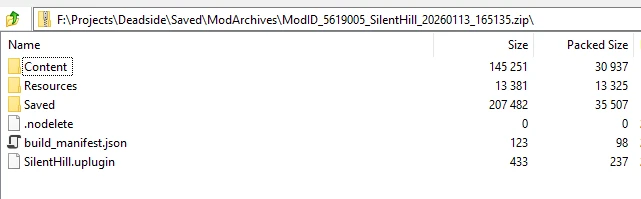
What happens next? You do not need to keep the ModKit open. The archive is sent to the remote build machine, which handles the compilation and upload to the Mod.io server.
You will receive email notifications regarding every status update (build success, upload completion, etc.), allowing you to track the progress remotely.
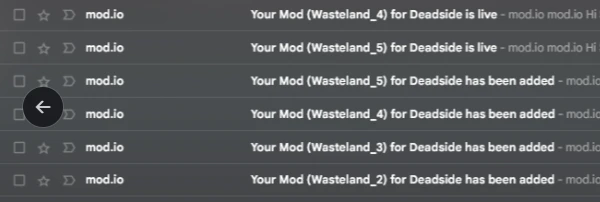
Once the mod is uploaded to Mod.io it will be open for testing, but accessible only to the creator and game moderators.