¶ Selecting Maps on GGHost
If you rent a private server through GGHost, this guide will help you change maps using their game panel. Information from this guide is taken from this page on their website.
First you will need to login to your GGHost game panel, then open the Deadside service that you would like to edit. Stop the server before making any changes, map changes only apply after a full restart.
Go to the Configuration Files, and open the Config Editor:
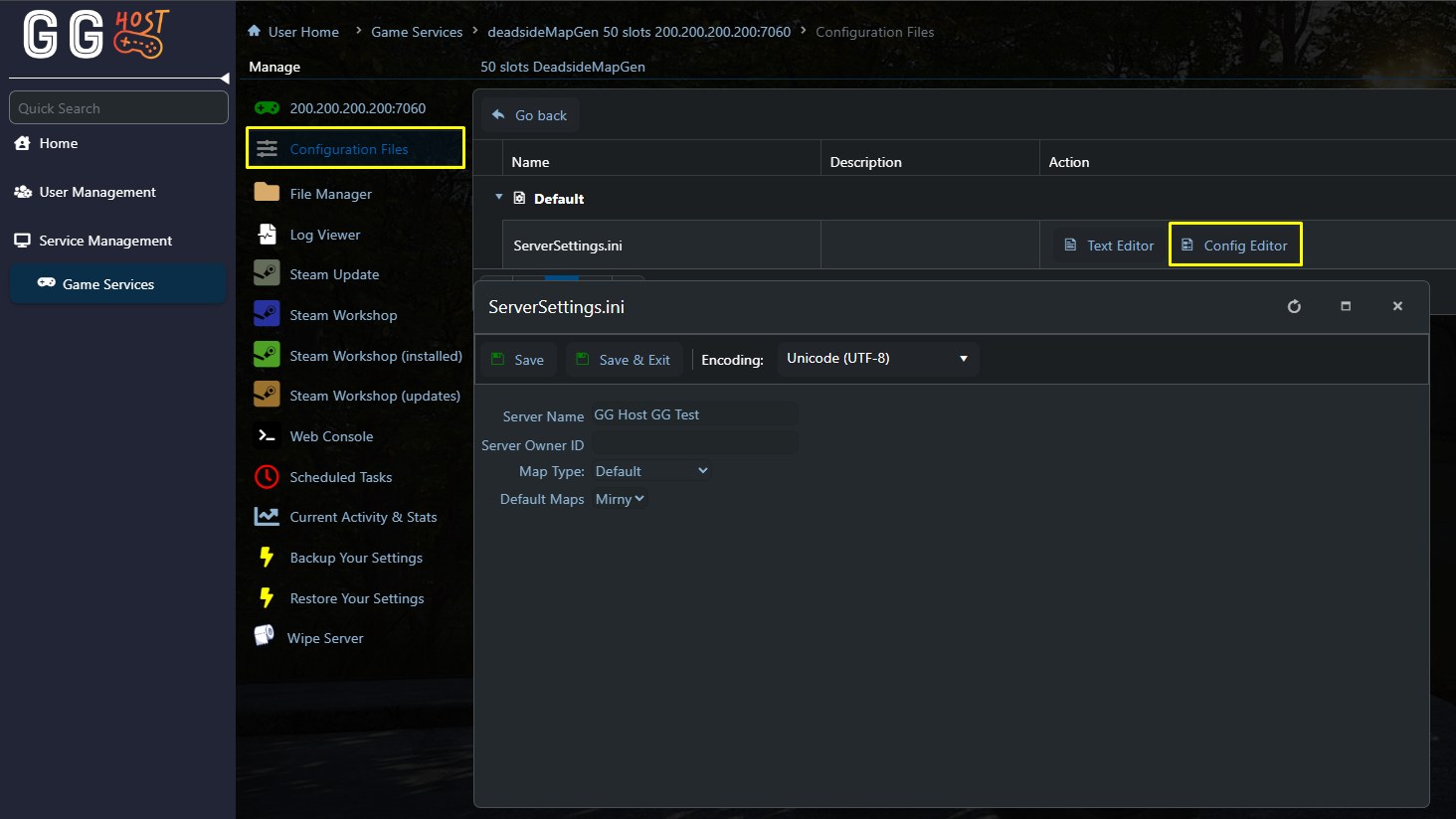
This is where all map selection changes are made. You can select multiple map types, including Default, Modded, and Procedural. To switch to a different Default map, click on the Default Maps dropdown menu and select the one you would like to use
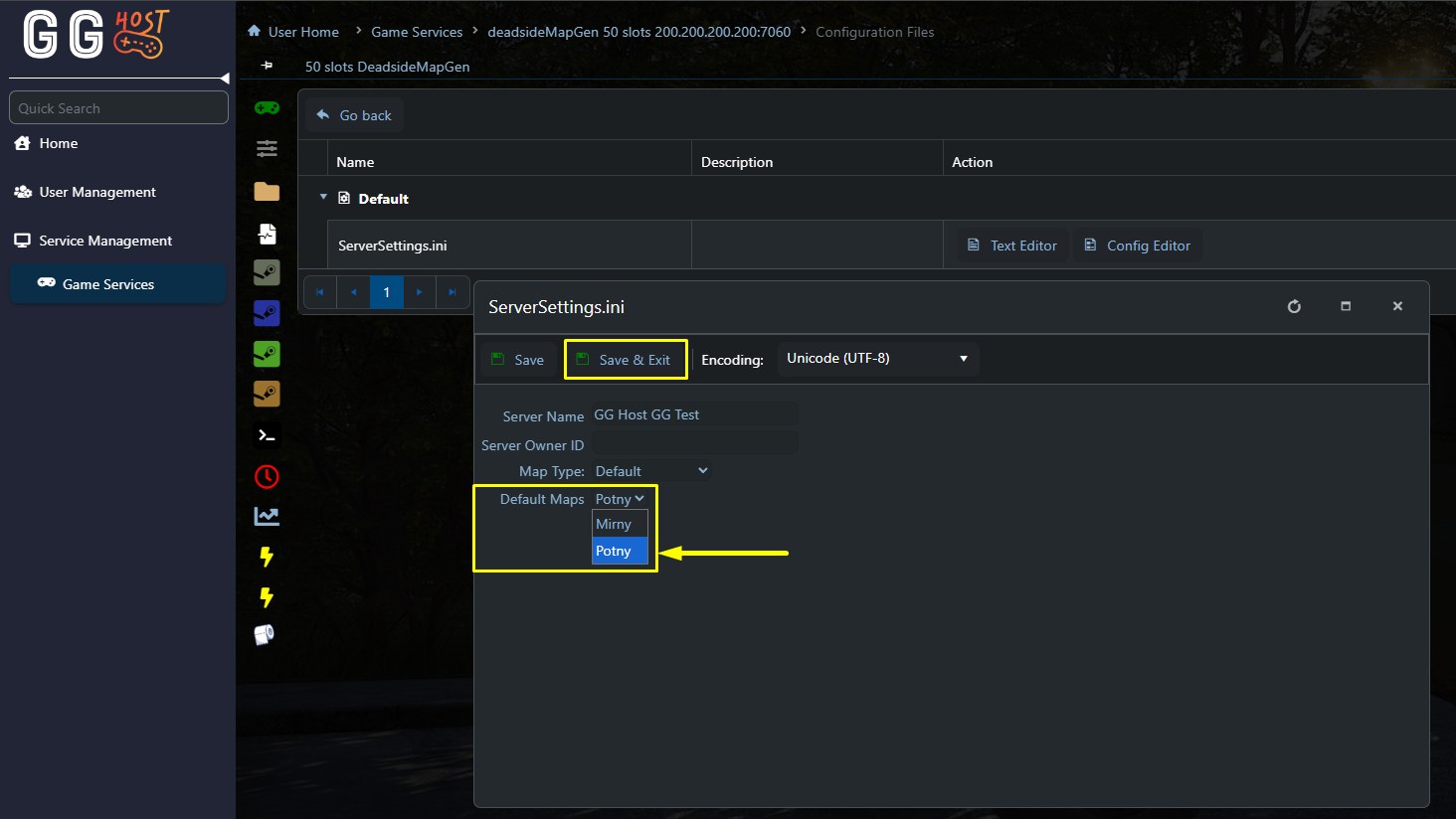
After you save and start your server again, it will load the selected default map
¶ Switching to a Modded Map
If you would like to run a modded map, on the Map Type field select the Modded Map option.
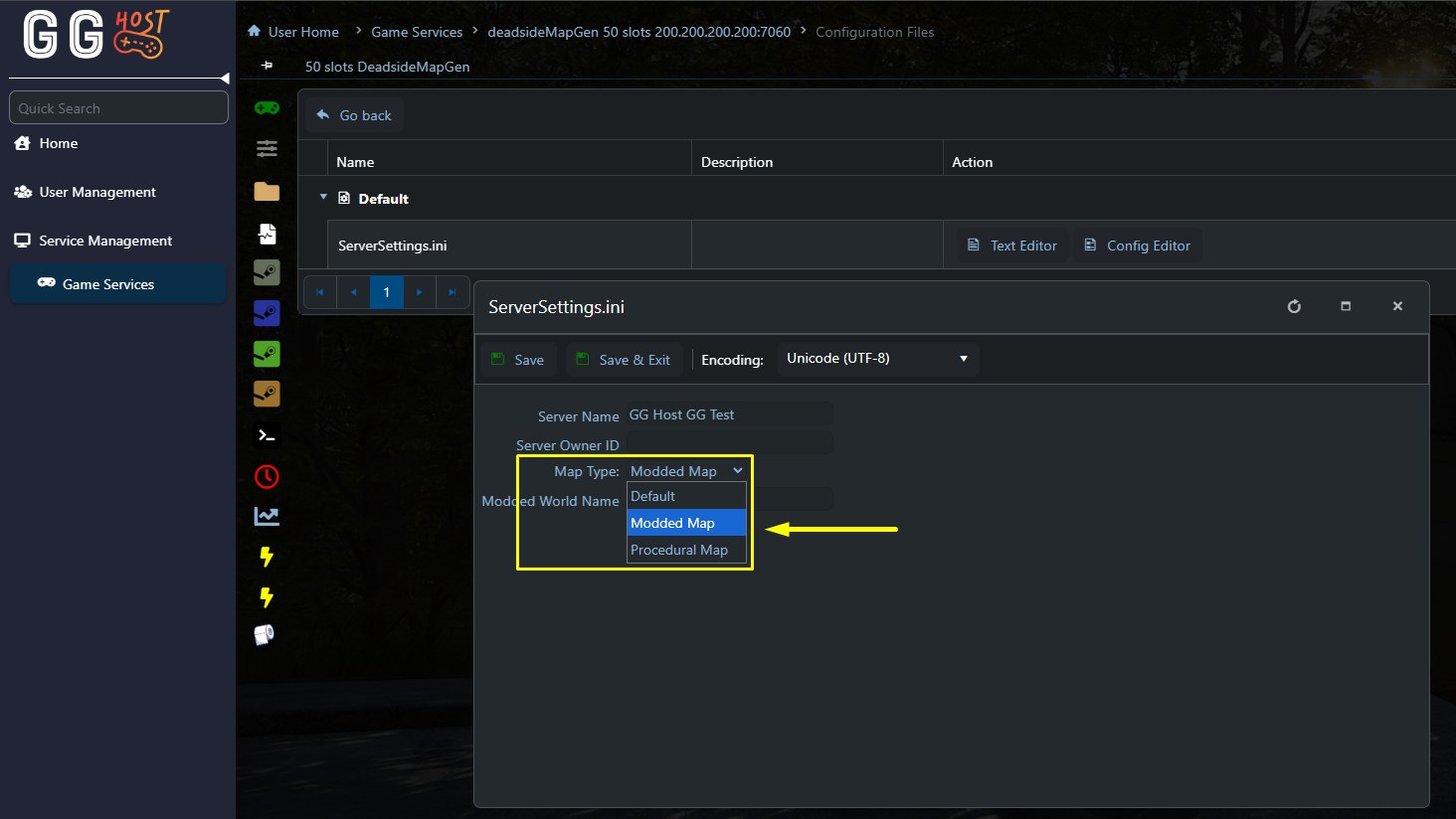
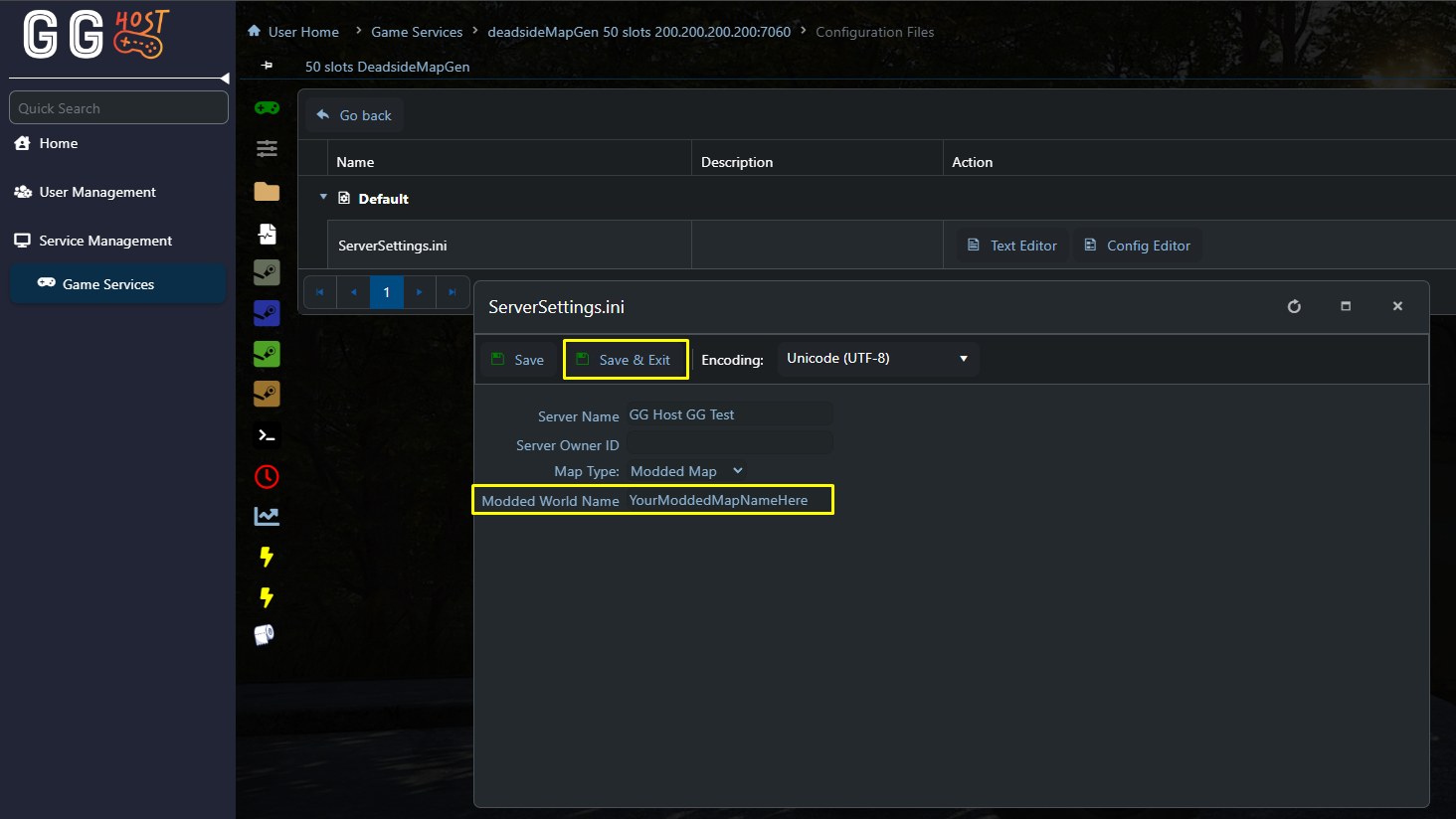
This will create a new field titled Modded World Name. Here you write the name of the modded map you would like to run. Important: the name must exactly match the map name defined by the mod author to run. If the name is incorrect, the server may fail to start or default back to World_0. If you don't know the exact world name, you may need to contact the mod author for that information.
¶ Switching to a Procedural Map
Using the game panel, you can use the procedural map generator to create a completely unique map layout for your server. First select the Procedural Map option in the Map Type field.
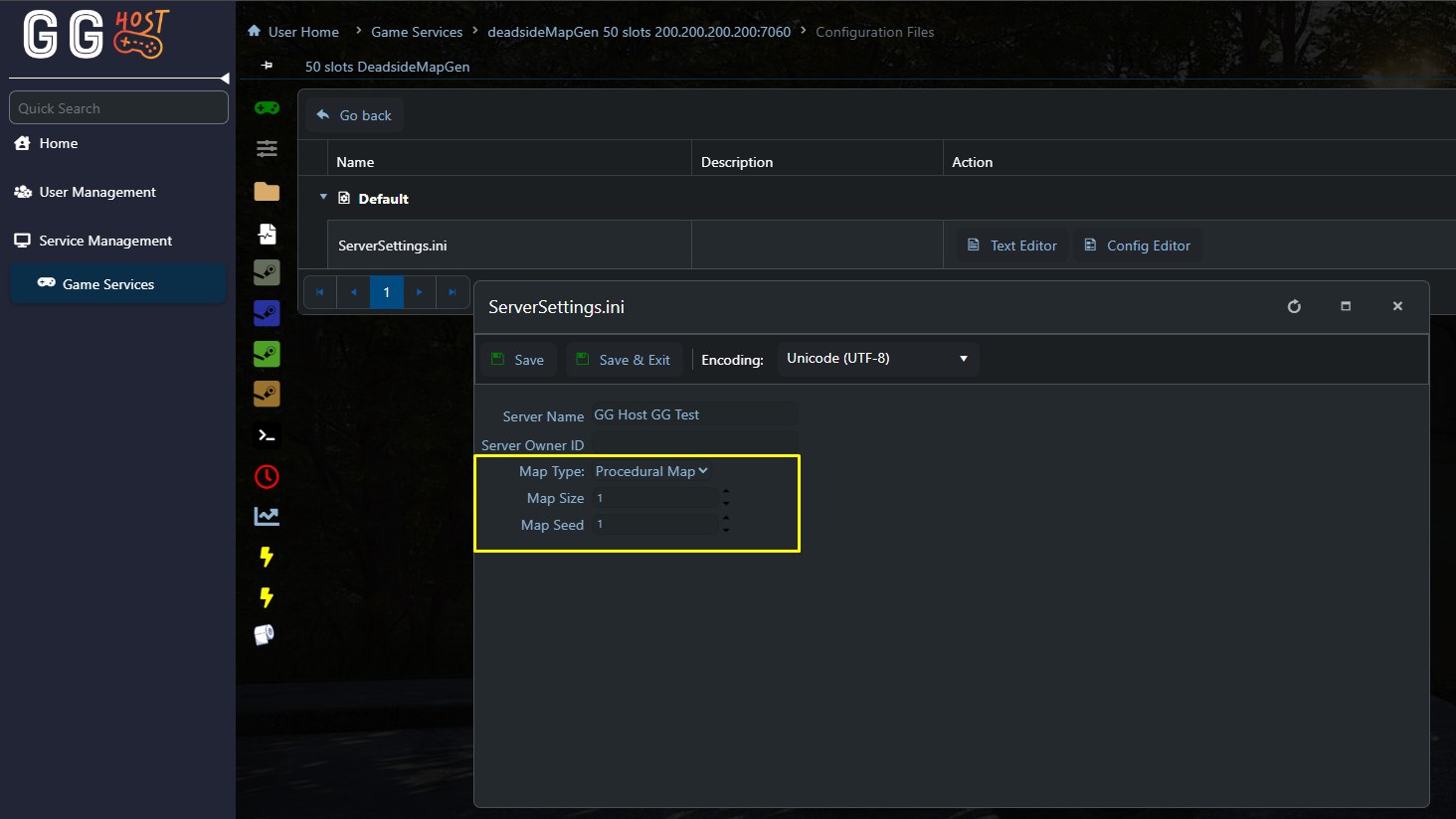
Here you can adjust the size, ranging from 1 to 4. Map Seed defines how the map is generated, you can enter any number between 1 and 2147483647. Maps using the same number will generate in the same way, meaning you can reuse them or save some for later.
After setting Map Size and Map Seed, save the settings and start your server again so the procedural map can be generated and loaded.